Conformance Checking Model Perspective
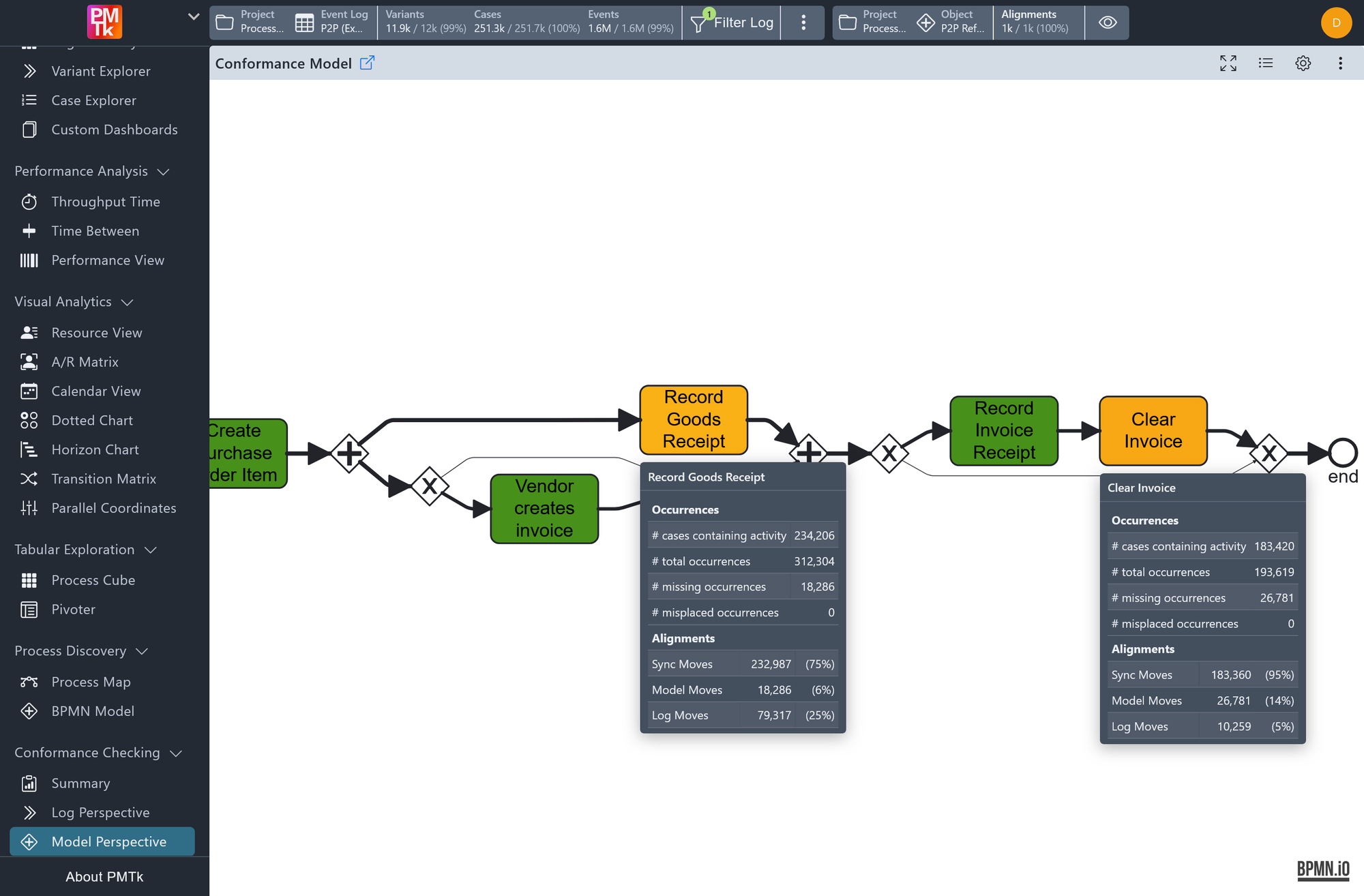
Screenshot shows the Model Perspective aligned against a previously created BPMN model. Activity nodes are color-coded by compliance level. The information overlay for Record Goods Receipt (as well as two arcs) is open.
The Model Perspective displays conformance results directly overlaid on the BPMN model, showing how well each element of the model is supported by the event log. Arcs get thicker the higher the number of their occurrences is, while Activity nodes are color-coded on a red-to-green scale based on how frequently they occur as expected (green indicating high compliance, red indicating low compliance). This makes it easy to identify at a glance which parts of the model are well-supported by the data and which are consistently violated or missing.
Model Perspective Computation
Depending on the size of the BPMN model and the event log, the conformance computation for the Model Perspective may take some time. You will be prompted to explicitly start the computation by clicking Compute Conformance Artefact; it can be cancelled at any time after that via Cancel.
Once completed, PMTk automatically saves the result as a conformance artefact in the workspace, associating the specific event log and model combination. This means the computation does not need to be repeated as long as neither the log nor the model has changed.
Note for hosted instances: Only one Model Perspective computation can run at a time across all users sharing a common backend. Admin users have the ability to cancel computations currently running for other users if needed.
Model Perspective Interaction
Clicking on any arc/node in the model opens a detailed statistics popup:
Arc
Displays the total number of times this transition was observed in the event log.
Activity Node
Displays a detailed breakdown organized into two sections:
| Metric | Description |
|---|---|
| # Cases containing activity | The number of cases in which this activity appeared at least once. |
| # Total occurrences | The total number of times this activity was observed across all cases. |
| # Missing occurrences | The number of times the model expected this activity but it was absent from the log. |
| # Misplaced occurrences | The number of times this activity appeared in the log but at a different position than the model expected. |
| Alignment | Description |
|---|---|
| Sync Moves (Compliant) | The activity occurred in the log exactly where the model expected it. |
| Model Moves (Missing) | The model expected the activity but it was not present in the log. |
| Log Moves (Unexpected) | The activity occurred in the log but was not expected by the model at that point. |
Model Perspective Configuration
The configuration panel provides the following options.
| Setting | Description | Values |
|---|---|---|
| Compliance Threshold | Set the minimum % of occurrences of an activity that must be executed as expected by the model for that activity to be considered fitting. This threshold drives the color scale: activities meeting or exceeding the threshold trend toward green, while those below it trend toward red. |
|
