Conformance Checking Log Perspective
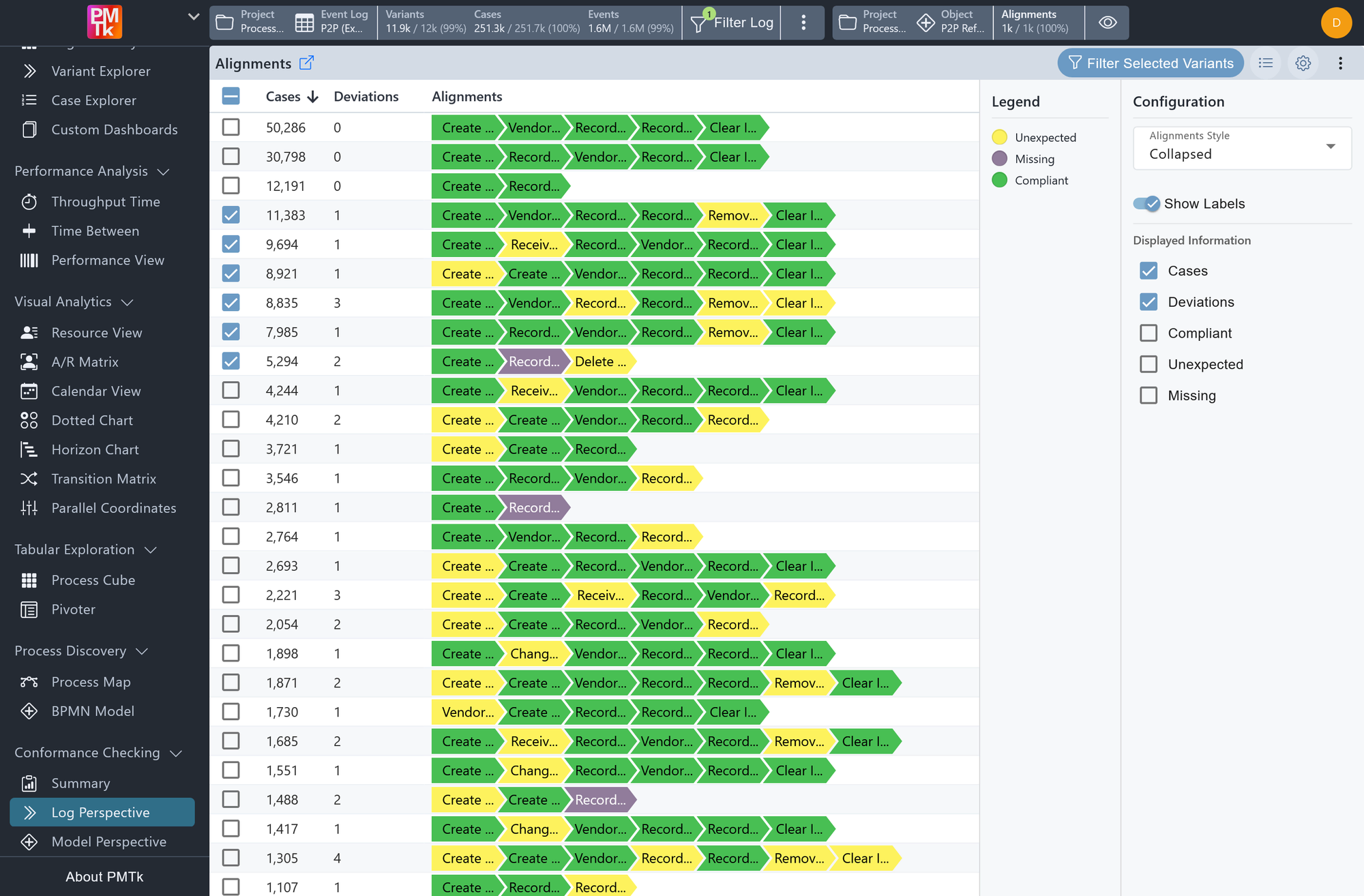
Screenshot shows the Log Perspective aligned against a previously created BPMN model. Each row displays a variant's case count, number of deviations, and alignment sequence as color-coded chevrons (green for compliant, yellow for unexpected, and purple for missing activities).
The Log Perspective provides a variant-level view of the computed alignments, showing exactly how each process variant deviates from the reference BPMN model. Each row represents one variant, sorted by frequency, and its alignment is displayed as a sequence of color-coded activity chevrons indicating the compliance status of each step:
| Alignment | Description |
|---|---|
| Compliant | The activity occurred in the log and was expected by the model at that point. |
| Unexpected | The activity occurred in the log but was not expected by the model at that point. |
| Missing | The activity was expected by the model but was absent from the log. |
This makes it immediately visible not only whether a variant is non-compliant, but precisely which activities are causing the deviation and in what position within the sequence.
Note
A BPMN model must be available in the workspace before conformance checking can be performed. If none has been created yet, you will be prompted to select or create one via the BPMN Model component.
Alignments are computed incrementally: PMTk processes 20 variants at a time in descending order of frequency, approximating the compliance of remaining variants after each batch. A maximum of 1,000 variants are fully calculated, all remaining variants are approximated. Progress is shown in the model control bar at the top, which also displays the currently selected model and the number of alignments completed. Calculation can be paused and resumed at any time using Stop/ Continue. While calculation is still in progress, a warning icon appears on the affected table as a reminder that the displayed figures are based on partial results.
Log Perspective Configuration
The configuration panel provides the following options.
| Setting | Description | Values |
|---|---|---|
| Alignments Style | Controls how activity chevrons are rendered within each row. |
|
| Show Labels | Toggles the rendering of activity names inside the chevrons. |
|
| Displayed Information | Controls which columns are shown in the table. |
|
Log Perspective Filtering
Variants can be selected using the checkboxes to the left of each row. With one or more variants selected, clicking Filter Selected Variants in the toolbar opens a filter dialog offering two filtering modes:
| Option | Effect |
|---|---|
| Positive: Keep Selected Variants | Retains only cases whose variant matches one of the selected alignments. |
| Negative: Remove Selected Variants | Removes all cases whose variant matches one of the selected alignments. |
Clicking Apply in the dialog applies the resulting Variants Filter globally across all dashboards. You can clear or adjust the filter at any time through the filter controls in the top bar.
