Handling Data Rebase
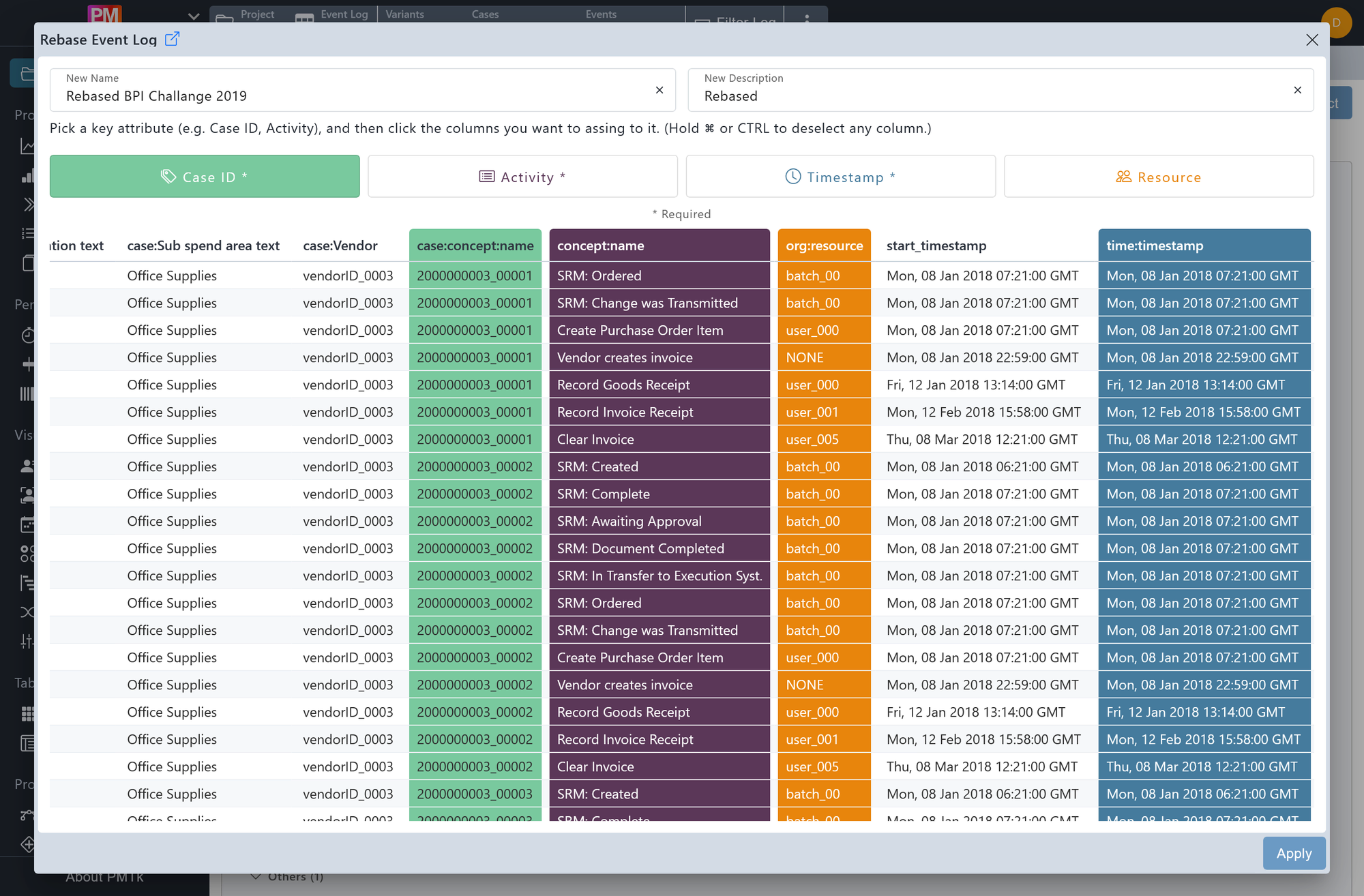
Screenshot shows the Rebase Event Log dialog. The Case ID button is active (green), and the columns case:concept:name (green / Case ID), concept:name (purple / Activity), org:resource (orange / Resource), and time:timestamp (blue / Timestamp) are already assigned.
Rebase lets you reassign which columns serve as the Case ID, Activity, Timestamp, and Resource of the event log. This is useful when the correct process-mining columns were not identified during import, or when you want to analyse the log from a different perspective.
Rebasing does not modify the original event log artefact. Instead, it creates a new Event Log artefact in the active project in the Workspace, which is why the dialog requires a name and an optional description for the result.
When done, enter a New Name for the resulting event log artefact (required) and an optional New Description, then click Apply. Clicking Cancel closes the dialog without creating anything.
Assigning Columns
First select the key attribute you want to assign by clicking one of the four buttons at the top (Case ID, Activity, Timestamp, Resource). The active button is highlighted. Then click the columns in the table below that you want to map to that attribute. Selected columns are colour-coded by their assigned role. Hold ⌘ or Ctrl and click a selected column to deselect it.
| Attribute | Required | Selection rules |
|---|---|---|
| Case ID | Yes | Any number of columns can be selected. If more than one column is chosen, their values are concatenated to form a single case identifier. |
| Activity | Yes | Any number of columns can be selected. If more than one column is chosen, their values are concatenated to form a single activity label. |
| Timestamp | Yes | A completion timestamp is always required (one column). Selecting a second column introduces start timestamps: the two columns are then labelled (start) and (end), representing the start and completion of each activity. More than two columns are not permitted. |
| Resource | No | At most one column can be selected. |
