Getting Started Workspace
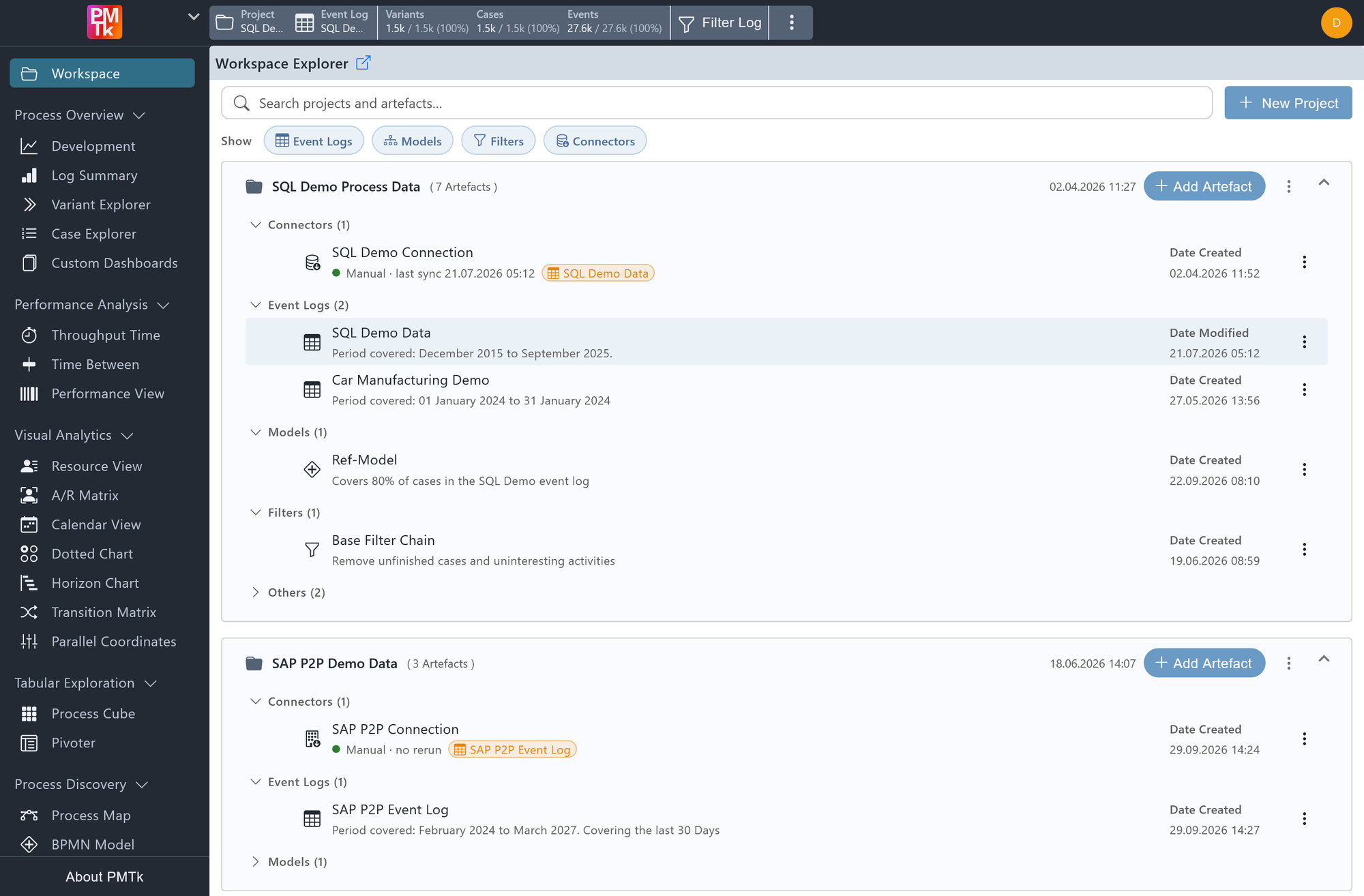
Screenshot shows the Workspace Explorer with the PMTk Documentation project expanded. This project contains several artefacts grouped into categories, including Connectors, Event Logs, Models, and Filters, each with their creation timestamps and type labels visible.
The Workspace is the central hub for organizing your work in PMTk. It is structured around Projects (i.e., named containers that group related artefacts such as event logs, BPMN models, SQL/SAP connectors, and conformance results). The Workspace is accessible at any time by clicking the PMTk logo or the corresponding workspace tile in the navigation panel.
Note
Creating new projects is restricted to admin users or above. Which projects are visible to a given user depends on the view permissions assigned in User Management. Projects a user has no view access to will not appear in the Workspace.
Managing Projects
Creating a Project
Click + New Project above the project list to create a new project. Each project has a Name and an optional Description, both of which can be set on creation and changed again later.
Editing or Deleting a Project
Click on the right side of a project row to rename the project, change its description, or delete it along with all its artefacts.
Finding Projects and Artefacts
Use the Search projects and artefacts… field at the top of the Workspace to quickly find a project or artefact by name.
The Show row lets you toggle which artefact categories are displayed within each project. Click a category (Event Logs, Models, Filters, Connectors) to show or hide all artefacts belonging to it, across all projects.
Artefact Types
The following artefact types can exist within a project:
| Type | Category | Description |
|---|---|---|
| Event Log | Event Logs | An imported event log used for analysis. |
| BPMN Model | Models | A process model in BPMN format, used for conformance checking. |
| SQL Connector | Connectors | An SQL query used to import event log data from an SQL server. |
| SAP Connector | Connectors | A connection used to import event log data from an SAP system. |
| Model Conformance | Models | Automatically generated when a Model Perspective computation completes, storing the result of a specific log-model combination. |
| Filter Chain | Filters | Generated when saving a filter chain in Filter Log. Stores the custom filter chain for further analysis. |
| Color Mapping | Others | Generated when saving a color configuration in Coloring. Stores custom activity colors for reuse across sessions. |
Adding Artefacts
To add an artefact to a project, click + Add Artefact on the right side of the project row. You will be prompted to choose between Event Log, BPMN Model, SQL Connector, or SAP Connector, and to provide a name and optional description. For Event Log and BPMN Model artefacts, a file explorer will open for you to select a .csv, .xes, or .bpmn file respectively.
Alternatively, you can drag and drop a .csv, .xes, or .bpmn file directly onto a project (the same import process will be triggered automatically).
For .csv event log imports, the CSV Import dialog will open after file selection. See Importing Data & Models for details.
Selecting and Loading Artefacts
Hovering over an artefact row reveals a Load, Show, or Adjust button, depending on the artefact type (see below). Clicking it has the same effect as clicking anywhere else on the row.
| Type | Description |
|---|---|
| Event Log | Load loads it as the active event log, after which all analysis components become available for use with it. |
| BPMN Model | Show opens a dialog where you can view the model, switch to edit mode, and make adjustments. |
| SQL Connector | Adjust opens the SQL Connector dialog. |
| SAP Connector | Adjust opens the SAP Connector dialog. |
| Model Conformance | Show opens the Model Perspective view for that specific log-model combination, without requiring recomputation. |
| Filter Chain | Apply opens a dialog showing a brief overview of the filter chain, giving you the option to apply it or leave it unchanged. |
| Color Mapping | Apply prompts you to confirm whether you want to apply the stored color mapping to the currently loaded event log. |
Artefact Actions
Each artefact has a set of available actions, accessible in the corresponding artefact row or via the menu. Available actions depend on the artefact type:
Event Log
| Action | Description |
|---|---|
| Download | Export the event log as .csv, .xes, .parquet, or as a Case Report .csv. |
| Show Data | View the event log contents in a table and edit its values. |
| Edit |
|
| Rebase | Reassign which columns map to case ID, activity, timestamp, or resource. |
| Business Hours | Define business hours to be considered in relevant analyses. |
| Merge | Merge two event logs into one. |
| Delete | Permanently remove the artefact from the project. |
BPMN Model
| Action | Description |
|---|---|
| Download | Export the model as an image (.png / .svg) or as plot data (.bpmn). |
| Show Data | Opens the same model viewer as clicking the artefact directly. |
| Edit |
|
| Delete | Permanently remove the artefact from the project. |
SQL Connector
| Action | Description |
|---|---|
| Duplicate | Create a copy of the SQL Connector artefact. |
| Re-run & Replace | Execute the query and replace the associated event log data with the result. |
| Update History | View the history of previous runs and data replacements for this connector. |
| Edit |
|
| Delete | Permanently remove the artefact from the project. |
SAP Connector
| Action | Description |
|---|---|
| Duplicate | Create a copy of the SAP Connector artefact. |
| Re-run & Replace | Execute the connector and replace the associated event log data with the result. |
| Update History | View the history of previous runs and data replacements for this connector. |
| Edit |
|
| Delete | Permanently remove the artefact from the project. |
Model Conformance
| Action | Description |
|---|---|
| Show Data | Opens the Model Perspective for this log-model combination. |
| Edit |
|
| Delete | Permanently remove the conformance artefact from the project. |
Filter Chain
| Action | Description |
|---|---|
| Edit |
|
| Delete | Permanently remove the filter chain artefact from the project. |
Color Mapping
| Action | Description |
|---|---|
| Edit |
|
| Delete | Permanently remove the color mapping artefact from the project. |
Bulk Deletion
Multiple artefacts within an expanded project can be selected simultaneously using the checkboxes that appear on the left side of each row when hovering over it. Once one or more artefacts are selected, a selection banner appears below the Show row, showing how many artefacts are selected and offering a Delete button to remove them all at once, and a button to clear the selection.
