Data Filtering Timeframe
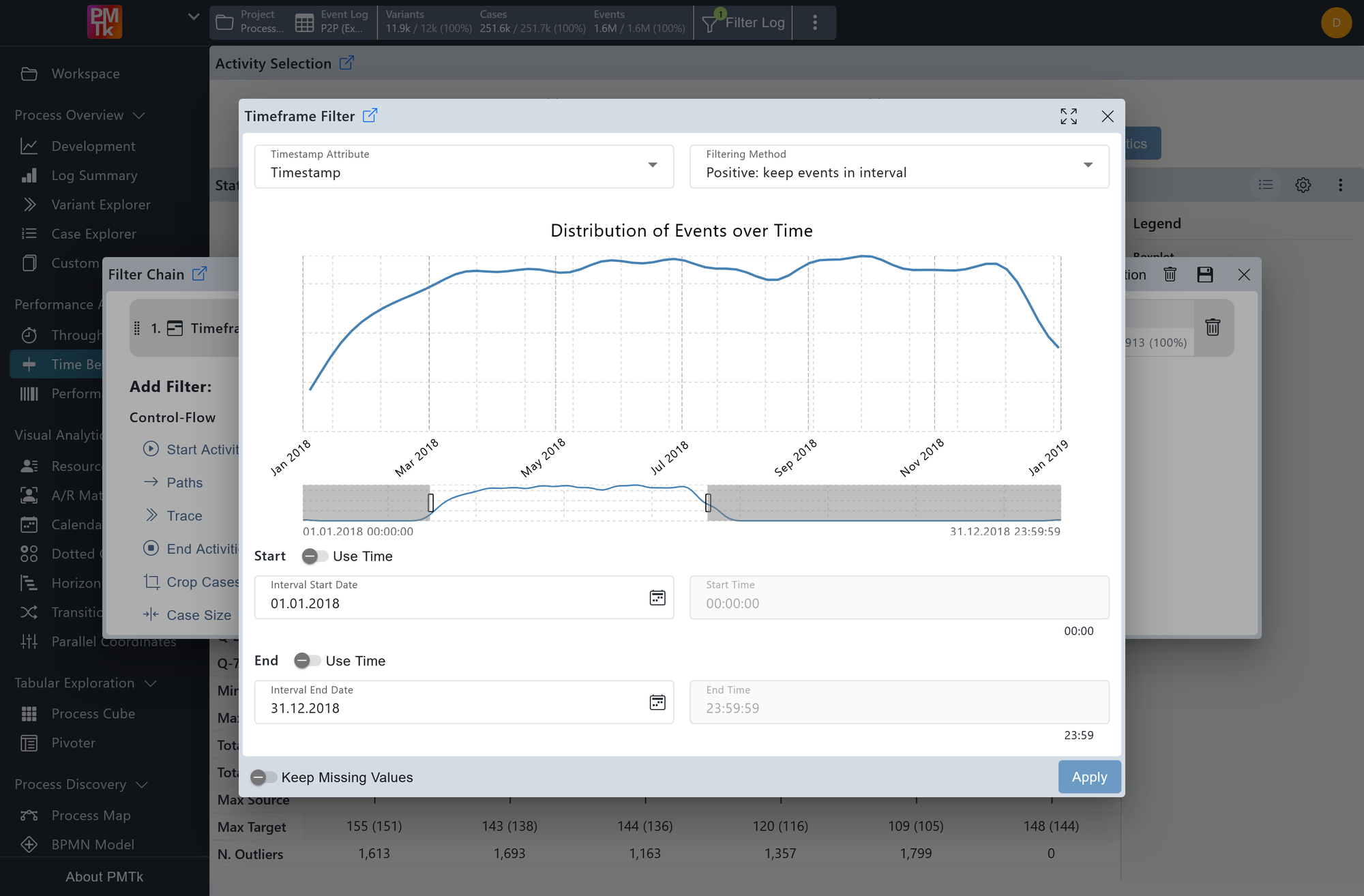
Screenshot shows the Timeframe Filter dialog. The distribution chart displays event density from January 2018 to December 2019, with the full range selected. The filtering method is set to Positive: keep events in interval, the Timestamp attribute is used, and the Use time toggle is disabled for both start and end bounds.
The Timeframe Filter allows you to restrict the event log based on a time interval applied to a selected timestamp attribute. A distribution chart provides a visual overview of event density over time, making it easy to identify and select meaningful time ranges.
Timestamp Attribute
The time-based attribute the interval is evaluated against. Defaults to Timestamp (event completion time) but can be changed to any other available time attribute in the log.
Filtering Method
Determines how the selected interval is applied to cases and events. Available options are:
| Option | Description |
|---|---|
| Positive: keep events in interval | Retains only individual events whose timestamp falls within the interval. |
| Positive: keep cases fully in interval | Retains only cases where all events fall within the interval. |
| Positive: keep cases intersecting interval | Retains cases that have at least one event within the interval. |
| Positive: keep cases starting in interval | Retains cases whose first event falls within the interval. |
| Negative: remove cases starting in interval | Removes cases whose first event falls within the interval. |
| Positive: keep cases completing in interval | Retains cases whose last event falls within the interval. |
| Negative: remove cases completing in interval | Removes cases whose last event falls within the interval. |
Selecting the Interval
The start and end of the interval can be defined in two ways:
- Distribution chart: Click and drag directly on the chart to mark a range. The chart displays the distribution of events over time, giving a visual guide for where the data is concentrated. Double-clicking the chart or clicking in the top-right corner of the dialog resets the selection to the full range.
- Input fields: The start and end dates and times can be entered directly in the respective fields below the chart.
For both the start and end bounds, the Use time toggle controls whether the time component is considered. When disabled, the start time defaults to the beginning of the day (00:00:00) and the end time defaults to the end of the day (23:59:59) for the selected date.
Below each time input field, the earliest (for start) or latest (for end) timestamp present in the data is shown for reference.
Keep Missing Values
When enabled, events or cases where the selected timestamp attribute has no recorded value are retained in the log rather than being filtered out.
On applying the filter, a corresponding entry is appended to the Filter Chain. Existing filters can be reviewed, reordered, and removed in the Filter Chain.
