Handling Data SLA Editor
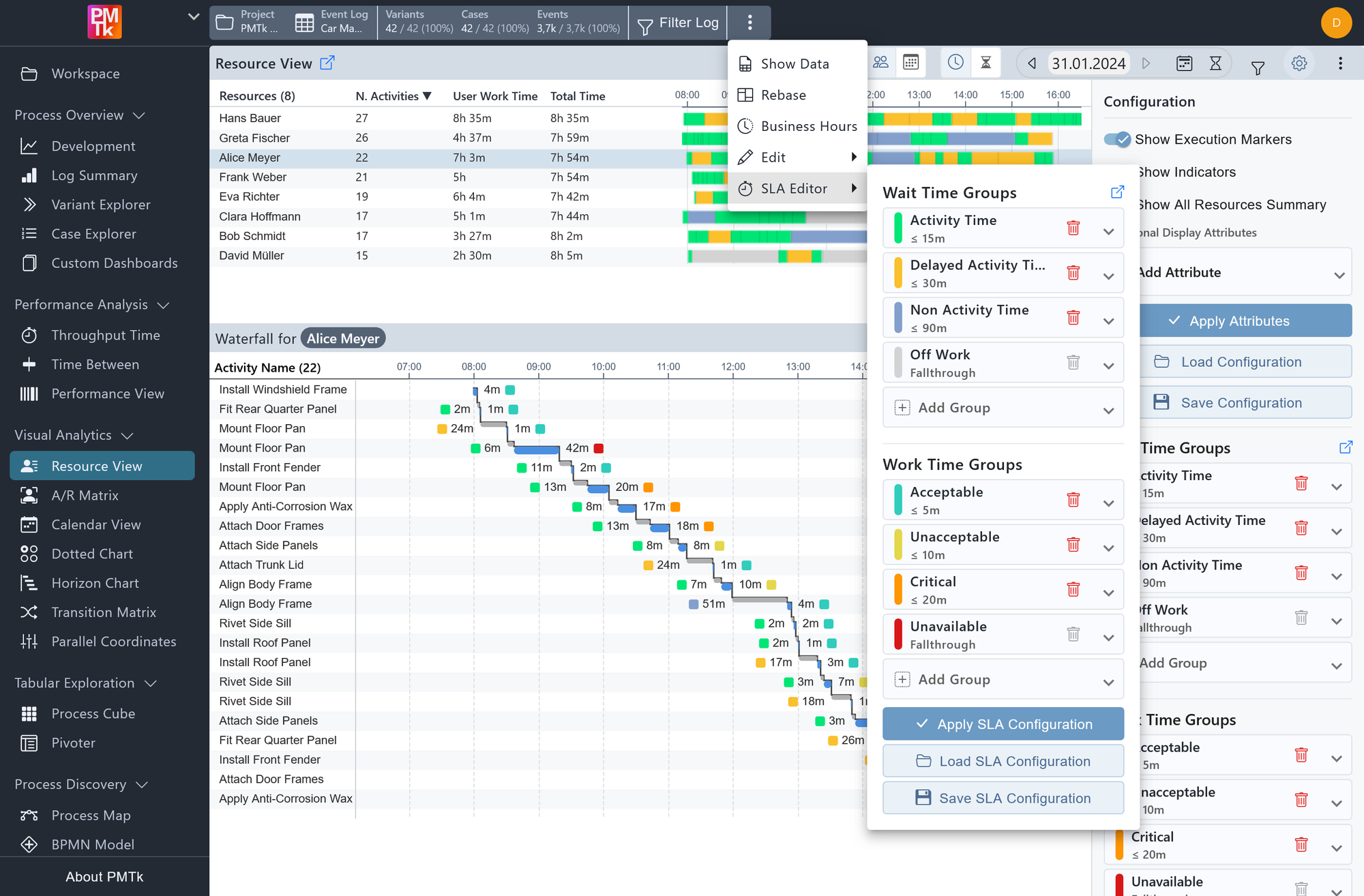
Screenshot shows the SLA Editor with a fully configured set of Wait Time Groups and Work Time Groups. Each group is assigned a color and a time threshold in minutes. The bottommost group in each set acts as a Fallthrough, capturing any duration not covered by the groups above.
The SLA Editor allows you to define SLA Groups independently for Wait Time and Work Time. These groups refer to a set of cases/activities/events that share the same Service Level Agreement (SLA) targets in terms of their expected duration. In PMTk, SLA Groups are named, color-coded time categories that you can configure to classify the durations of Wait Time and Work Time throughout the tool.
SLA Groups are currently used in the following contexts:
- Resource View: Group assignments determine the color-coded segments in the Timeline Chart and the indicators in the Waterfall Chart. Groups marked as Count as Active contribute to the reported User Work Time per resource.
- Pivoter: Users can selectively hide specific SLA Groups from metrics they define.
The SLA Editor can be accessed either through the configuration panel of the Resource View, or via the event log control bar at the top of the screen.
Group Structure
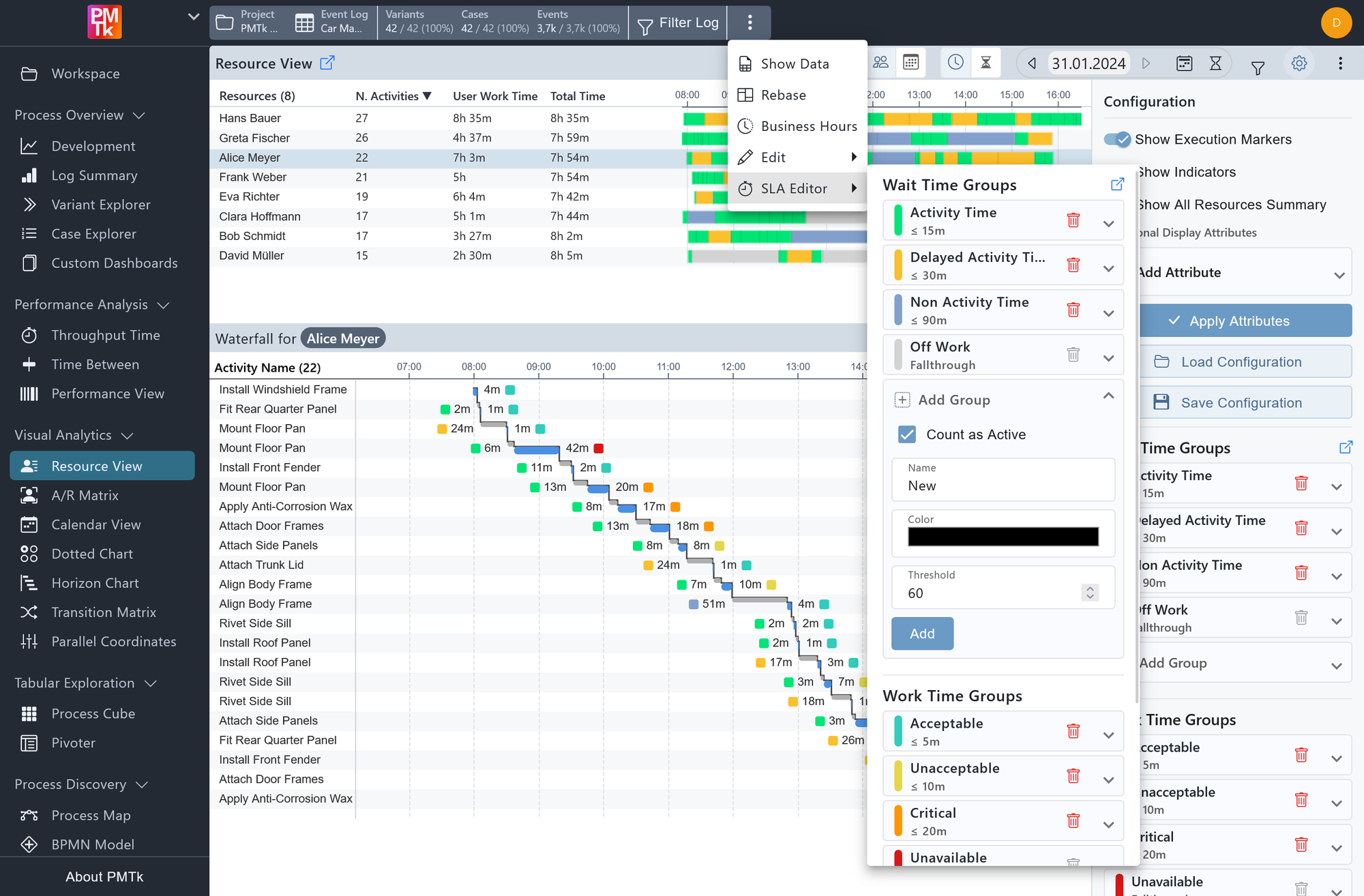
Screenshot shows the Add Group form expanded within the Wait Time Groups section. The user can specify a name, color, and threshold in minutes for the new group, and optionally mark it as Count as Active to include its durations in the resource's active time calculation in the Resource View.
Each SLA Group consists of the following properties:
| Property | Description |
|---|---|
| Name | A descriptive label for the group (e.g. Activity Time, Delayed Activity). |
| Color | A visual identifier used consistently across all views that display SLA Groups. |
| Threshold | The upper time boundary for the group, specified in minutes. An event's duration is assigned to the first group whose threshold it does not exceed, evaluated from top to bottom. |
| Count as Active | When enabled, durations falling into this group are counted toward the resource's active time in the Resource View. |
Groups are evaluated in order from top to bottom. The last group in each set is always a Fallthrough group. It captures any duration that does not fall within the threshold of any group above it. The Fallthrough group has no threshold and cannot be reordered or deleted.
Manage Groups
The SLA Editor provides the following functionality for managing your SLA Groups.
| Interaction | Description |
|---|---|
| Add Group | Click on the Add Group button of either section to expand the form. Fill in the group's name, color, and threshold, and optionally check Count as Active if applicable. Click Add to insert the new group. |
| Edit Group | Click on any existing group to reveal its editable fields. |
| Delete Group | Click the trash icon next to a group to remove it. |
| Apply Changes | Click the Apply SLA Configuration button to apply your changes. |
Saving and Loading Configurations
SLA Group configurations can be saved and restored independently of other view configurations using the Save SLA Configuration and Load SLA Configuration buttons. This allows you to maintain and switch between different SLA setups (for example, one tailored for operational monitoring and another for executive reporting).
When saving, give the configuration a name and choose Private (visible only to you) or Global (visible to all users; requires edit permissions). When loading, you will see a list of saved configurations available in the current project, with global configurations listed before your private ones. Configurations are stored as project-scoped SLA settings and can be overwritten or deleted from this menu when you have the required permissions.
