Data Filtering SQL Filter
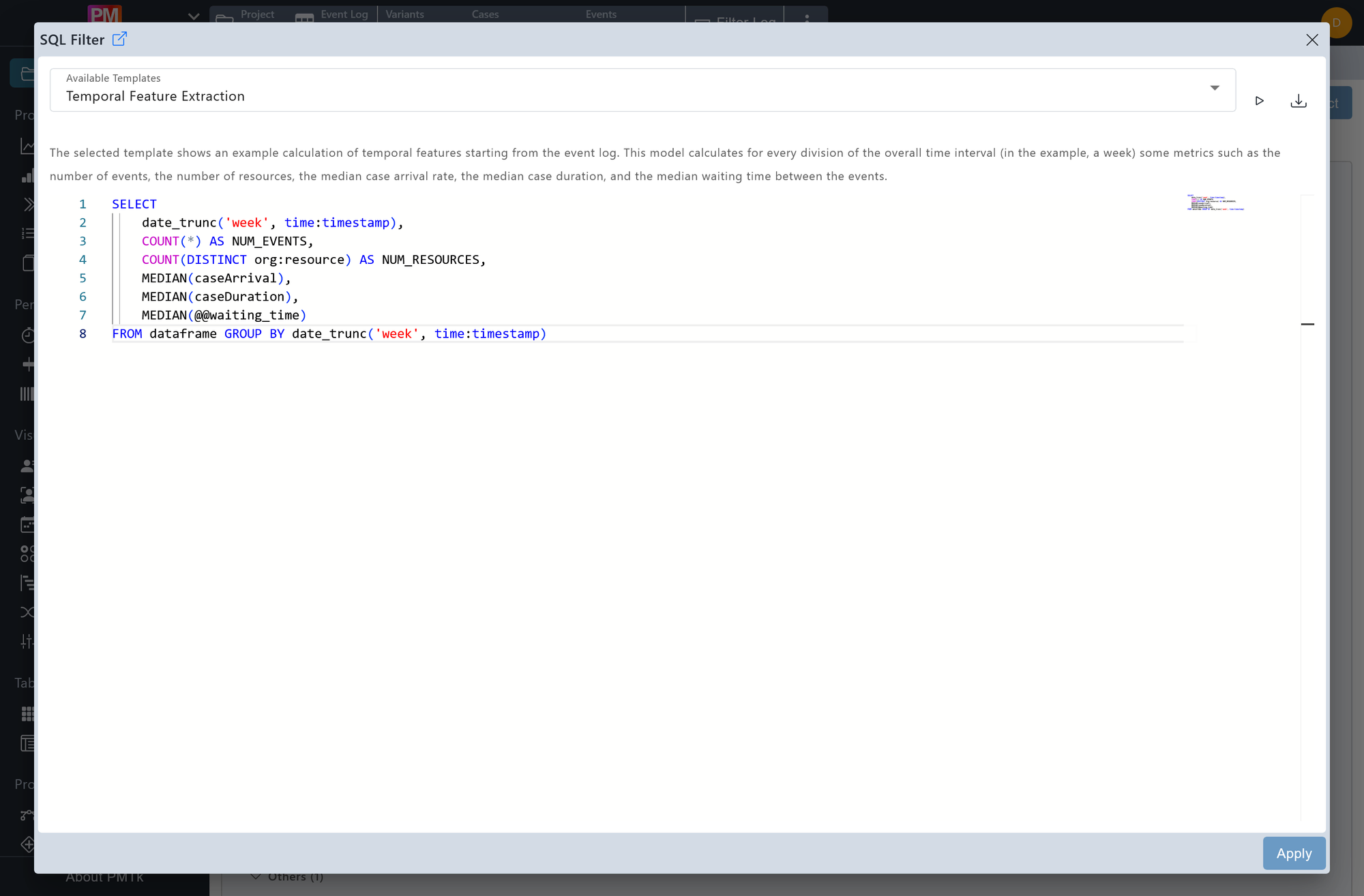
Screenshot shows the SQL Filter dialog with the Temporal Feature Extraction template loaded. The query groups the event log by week using date_trunc and computes several metrics per interval including event count, distinct resource count, median case arrival rate, median case duration, and median waiting time.
The SQL Filter is the most powerful and flexible filter available in the tool, allowing you to query and transform the event log using standard SQL syntax. This makes it possible to express complex filtering logic that goes beyond what the other filters support.
Available Templates
A set of pre-built query templates is available via the Available Templates dropdown. Each template comes with a description explaining what it computes and how it is structured, serving as a useful starting point for building custom queries. Selecting a template loads it directly into the query editor.
Writing Queries
The event log is exposed as a table named dataframe, which is referenced in all queries as the FROM target. Queries follow standard SQL syntax with the following notes:
- Use single quotes (
') for string literals rather than double quotes (") - PMTk uses DuckDB as the underlying query engine. Adjust function syntax based on this. To inspect the currently used version, execute
SELECT version(); - Accessible PMTk-specific columns can be found on the PMTk Attributes page
Running and Exporting
Two controls are available above the query editor:
- : Executes the current query and previews the result, allowing you to test and validate the query before applying it as a filter.
- : Downloads the result of the current query as a CSV file.
Once the query is ready, clicking Apply Filter applies it to the event log. The resulting table replaces the active event log for all downstream components.
On applying the filter, a corresponding entry is appended to the Filter Chain. Existing filters can be reviewed, reordered, and removed in the Filter Chain.
