Data Filtering Numeric Attributes
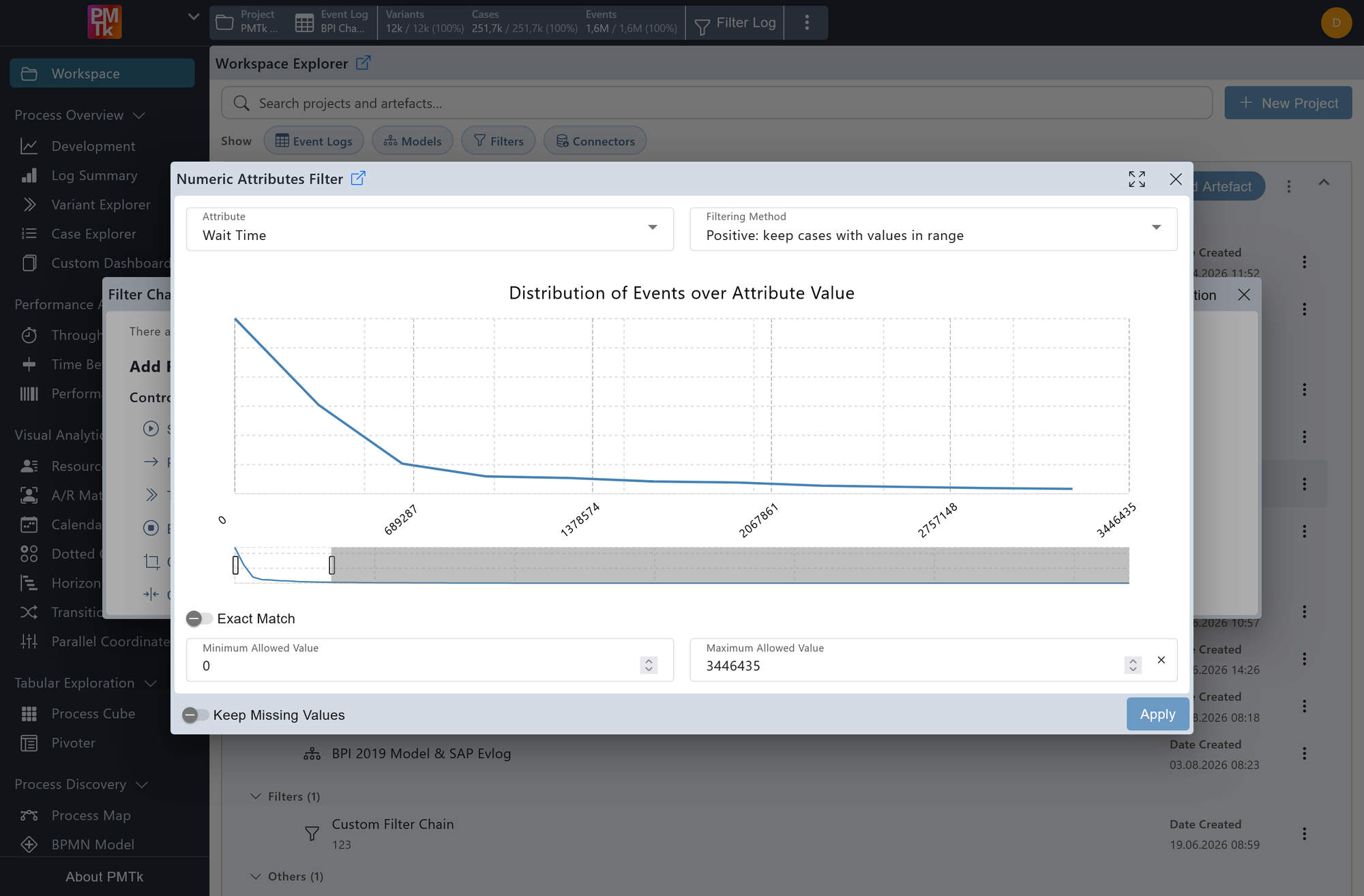
Screenshot shows the Numeric Attributes Filter dialog with the Wait Time attribute selected and the filtering method set to Positive: keep cases with values in range. The distribution chart displays the spread of events across the full value range of 0 to 5,016,640. The full range is currently selected via the range slider, with the corresponding minimum and maximum values shown in the input fields below.
The Numeric Attributes Filter allows you to retain or remove cases and events based on whether a numeric attribute value falls within a specified range.
Attribute
The numeric attribute to filter on. Any numeric attribute available in the event log can be selected. Check out Column Types if a suitable numeric attribute does not show up in the list, or PMTk Attributes if it is unclear in what format certain numeric attributes are provided (e.g. milliseconds, seconds).
Filtering Method
Determines how the selected range is applied:
| Option | Description |
|---|---|
| Cases | |
| Positive: keep cases with values in range | Retains only cases where at least one event has an attribute value within the specified range. |
| Negative: remove cases with values in range | Removes all cases where at least one event has an attribute value within the specified range. |
| Events | |
| Positive: keep events with values in range | Retains only the individual events whose attribute value falls within the specified range. |
| Negative: remove events with values in range | Removes all individual events whose attribute value falls within the specified range. |
Selecting the Range
The distribution chart displays the spread of events across the full value range of the selected attribute. The range can be set in two ways:
- Distribution chart: Click and drag directly on the chart to mark a range. The chart displays the distribution of events over time, giving a visual guide for where the data is concentrated. Double-clicking the chart or clicking in the top-right corner of the dialog resets the selection to the full range.
- Input fields: The Minimum Allowed Value and Maximum Allowed Value can be entered directly in the fields at the bottom of the dialog.
Exact Match
When enabled, the filter targets a single specific value rather than a range. In this mode, only one input field is shown at the bottom of the dialog.
Keep Missing Values
When enabled, events or cases where the selected attribute has no recorded value are retained rather than being filtered out.
The default state of Keep Missing Values, its visibility, and which filtering methods are available can be configured in Feature Management.
On applying the filter, a corresponding entry is appended to the Filter Chain. Existing filters can be reviewed, reordered, and removed in the Filter Chain.
