Handling Data Show Data
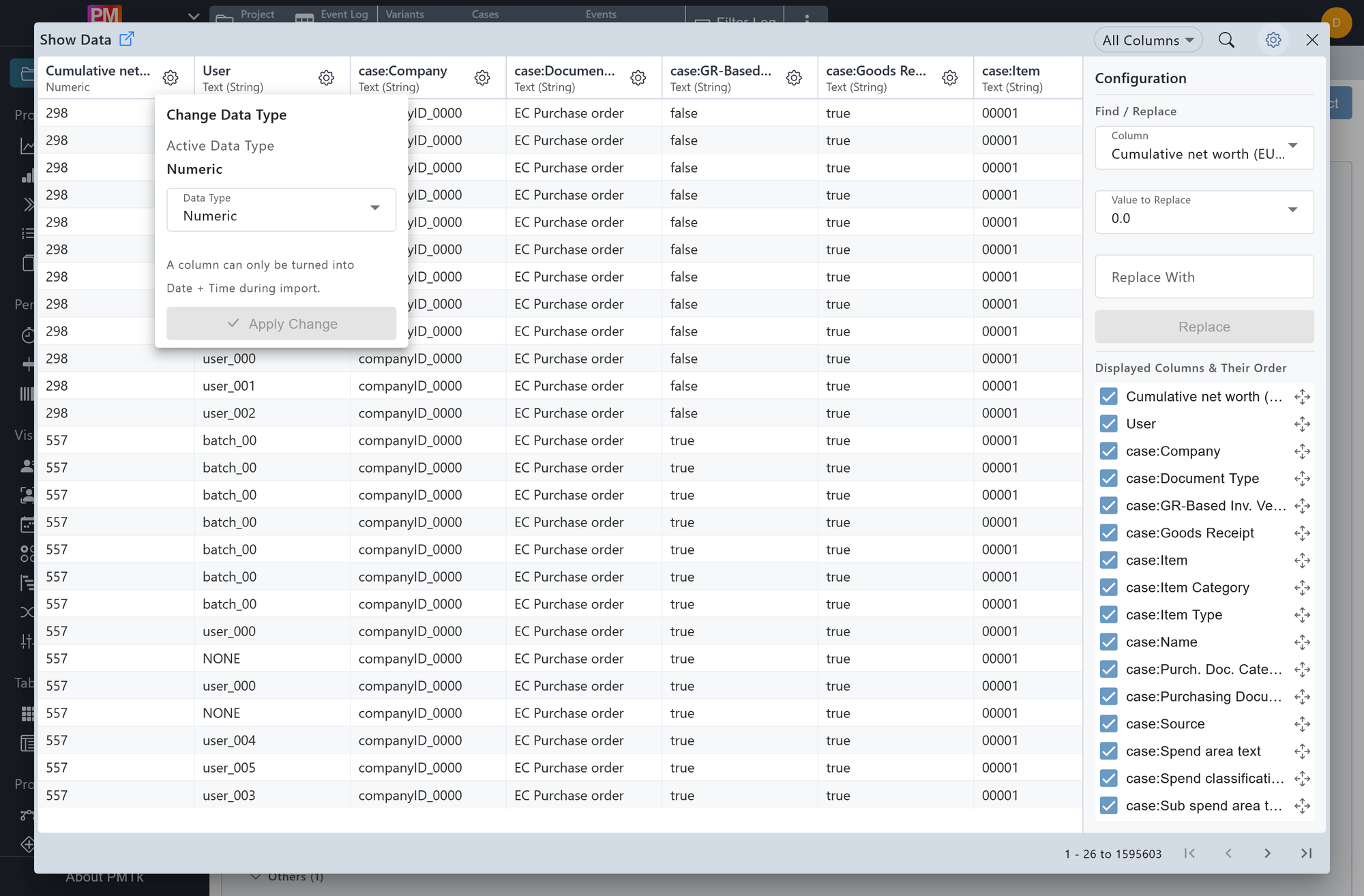
Screenshot shows the Show Data dialog with the event log displayed as a paginated table. The column selector and search field are visible at the top. The Configuration panel on the right is expanded, showing the Find / Replace section.
Show Data opens a full tabular view of the loaded event log, displaying all events as rows alongside their attributes as columns. In addition to browsing the data, you can search across columns, reorder or hide columns, change column types, edit cell values, and apply filters directly from the table.
Show Data Search
The search bar at the top of the dialog filters the visible rows to those containing the entered text as a substring in at least one of the currently selected columns. To search within a specific column only, select that column exclusively in the column selector to the left of the search bar, then enter your search term.
Show Data Cell Actions
Clicking on any cell in the table reveals two actions:
| Action | Description |
|---|---|
| Edit | Opens an editor dialog for the selected cell, allowing you to change the value directly. The change is applied to the event log immediately on confirmation. |
| Filter | Opens the filter dialog most appropriate for the column's data type, pre-populated with the cell's value as a starting point:
|
Column Types
Each column header shows a button beside the column name, letting you adjust the data type PMTk assigns to that column. Correct column types are important because filters, analyses, and display formatting all depend on them.
Available Types
PMTk recognises three data types for attribute columns:
| Type | Description |
|---|---|
| Text (String) | Categorical or free-text values. Enables text-based filters such as Text Attributes and Free Text. |
| Numeric | Integer or decimal values. Enables numeric filters such as Numeric Attributes and numeric aggregations in analyses. |
| Date + Time | Timestamp values. Enables time-based filters and analyses. This type can currently only be assigned during the import process and is not available for selection here. |
Changing a Type
Click beside a column name to open its type settings, and select a new type from the dropdown to switch the column between Text (String) and Numeric. PMTk will attempt to convert the existing column values and notify you whether the conversion succeeded or if any values could not be parsed into the target type.
Process-mining-relevant columns that store the case ID, activity, timestamp, or resource are fixed and their type cannot be changed.
Show Data Configuration
The configuration panel on the right side of the dialog provides three sections:
Select / Hide Columns
All columns are shown by default. Uncheck a column's checkbox to hide it from the table.
Rearrange Columns
Drag next to a column name to change its display order in the table.
Find / Replace
Replaces all occurrences of a specific value within a selected attribute column with a new value. Select the target column from the Attribute to Replace dropdown, choose the value to replace from the Value to Replace dropdown, enter the replacement in the Replace with field, and click Replace to apply the change across the entire event log.
